Service pages#
This page covers the service-level controls exposed in the DUMB Frontend, including auto-restart policies, auto-update scheduling, and configuration editors.
The dashboard Updates panel includes install-cache usage and maintenance
only when the backend advertises install_cache_management. On older DUMB
versions the controls remain hidden and the frontend makes no install-cache API
requests. Managed, legacy, and combined usage are shown when supplied by the
backend. Named-scope cleanup is independently gated by
install_cache_cleanup, so a frontend on dev does not call the cleanup route
on older APIs. Editing and saving dumb.install_cache.max_size_gib is separately
gated by install_cache_limit_settings; saving the value does not prune until
the operator selects Prune to limit. See
Install cache and safe updates.
Overview#
Each service page includes:
- Current status, health, and restart counters
- Start, stop, and restart actions (except for the API service)
- Configuration editors with validation
- Log viewers (service logs, plus special logs when available)
- Embedded UI tab when supported and enabled
- Dependency graph view for core/dependency startup relationships
- Per-service auto-restart overrides
- Media Library Protection policy and Plex library preferences on Plex, Jellyfin, and Emby pages
- On-demand update checks and auto-update scheduling
- InfiniDysk/NzbDAV install provenance in Updates (verified prebuilt archive or source build, resolved release, and automatic fallback reason)
- An opt-in InfiniDysk migration notice with Remind me later, compatibility-only branding, and a guarded complete-namespace preflight/apply path with persistent background progress
- A Sponsor action when the backend publishes a support link for the service
- Seerr Sync controls when viewing a Seerr instance
- Symlink Job Center (for symlink-capable services) with active jobs, recent history, retry, and failure clearing
- Guided SQLite-to-PostgreSQL rehearsal/cutover panel on every backend-advertised supported service, with explicit rehearsal/cutover success notices, automatic cutover selection, close-while-active confirmation, and persistent background running/completion indicators
- An Rclone Optimizer tab and persistent active-job banner on InfiniDysk-backed rclone instances when the backend advertises
rclone_optimizer_infinidysk; the InfiniDysk page shows only a link to an associated active rclone job - Sidebar operator QoL controls (quick filters, saved views, compact mode, and command palette)
Status and controls#
The header shows the service name, status dot, and health badge. When auto-restart is enabled for a service, you also see restart counters and the last restart reason. With Geek Mode enabled, the header also displays the internal config key and process name in monospace.
The compact command bar keeps frequent actions visible:
- Start, Stop, Restart for the current service
- Save to File persists the current configuration; on DUMB Config, its split-button menu also provides Apply in Memory for a temporary change
- Tools, pinned beside the horizontally scrollable tab strip, opens capability-gated Automation, Data, Observability, Maintenance, Project, and page-preference groups from every tab
On extra-narrow displays, Tools uses its wrench icon without the text label so more of the tab strip remains visible; its menu and accessibility label are unchanged.
Less-frequent controls such as Auto-restart, Library Protection, Seerr Sync, Database Migration, Database Health, Dependencies, Metrics, Updates, Reset / Remove, and Sponsor appear in the relevant Tools group. Active updates and database migrations remain promoted through the existing page banners and an attention indicator on Tools. Docs remains available directly in the service header.
When a manual stop, restart, or update affects a protected downstream media server, the frontend displays current stream/scan activity before it performs the operation. Users can defer, use the safe stop-and-recover path, keep the media server running with scans guarded, or explicitly stop it immediately. Dashboard bulk updates use safe mode and report protected busy/unknown services as deferred; use the individual service page to choose an override.
API service controls
The DUMB API service does not show Start/Stop/Restart controls in the UI.
InfiniDysk namespace migration#
Legacy NzbDAV installations receive a backend-persisted migration notice. The
compatibility choice changes identity and optional attached-service labels but
keeps every path. The complete namespace choice remains locked until Run
preflight confirms reachable Arr/Prowlarr/media APIs, inspectable activity,
conflict-free destinations, and rollback-safe filesystem moves. Current Arr
queues, playback, and active reads appear as pending conditions that DUMB can
quiesce automatically after the job starts. Preflight also verifies that
InfiniDysk's internal repair.enable health-check scheduler can be inspected
and temporarily paused; an enabled environment-managed value is a blocker
because the running API cannot safely override it.
Canonical fresh InfiniDysk installations do not receive this notice or a
manual migration action. The frontend requires both backend migration
eligibility and a valid persisted job record before it exposes the related
controls; a missing job is reported as null.
The preflight expands Arr migration discovery to show every enabled Arr as
included or excluded with its reason. DUMB uses both configured core_service
metadata and live legacy item/root, import-list, Radarr collection,
download-client/category, and tag references, so Prowlarr-managed Arrs without
an InfiniDysk metadata tag are still included when their API state uses the
legacy namespace. If no DUMB media server is enabled, a configured Plex
address and token are inferred as External Plex. The dialog confirms the
server name/version and affected library count; DUMB can guard scans and
update/validate/restore its library paths but cannot stop the external process
or pause Autoscan.
After a passing preflight, the dialog shows filesystem, Arr
item/root/import-list/collection/download-client/tag, Prowlarr application/tag,
and media-library change counts and requires
acknowledgement of service downtime, the normal
post-cutover library scan, and rollback limits. Applying remains unavailable if
the token expires or a structural/API blocker remains. A Prowlarr installation
that contains both legacy and canonical tag labels or application names is
blocked rather than merged implicitly; reconcile the duplicate in Prowlarr and
run preflight again. DUMB stops linked
NeutArr/Seerr/Profilarr/Prowlarr producers first, lets each Arr queue drain while
its UI remains available, holds each Arr or media server stopped as soon as it
is safe, temporarily pauses new InfiniDysk scheduled health checks, and waits up
to one hour. Already-running health probes are allowed to finish. DUMB records
the exact prior scheduler value in the private rollback bundle and restores and
verifies it after either a successful cutover or rollback. Failed or held Arr items remain operator-owned
and can be resolved in the Arr UI; DUMB aborts before moving paths if they do not
drain. Transient Arr API or database failures are shown as pending and retried
within that same window instead of immediately rolling the migration back. When
verified playback is the remaining condition, the progress dialog
offers Stop active playback and continue. It names the affected media
server and requires typing STOP ACTIVE PLAYBACK; accepting immediately stops
that server and terminates its streams. DUMB still waits for InfiniDysk reads
to close and does not bypass queues or other blockers. This action is offered
only for DUMB-managed media servers. External Plex must be made idle outside
DUMB, and progress distinguishes external activity/active reads from an Arr
queue problem. A user who previously chose
compatibility-only can reopen the full migration from the InfiniDysk service
page; Remind me later remains available before the identity cutover.
The complete namespace cutover starts a backend-persisted job. Its dialog shows stage, percentage, recent progress events, and live completed/total reference counts while large Arr catalogs are updated. Closing the dialog prompts that the operation will continue, then promotes an InfiniDysk migration running banner with Open progress. Navigation and browser reloads reattach to the same job. Any authenticated browser or device connected to that DUMB instance discovers the backend-owned job; the browser that started it does not own the operation. A browser that observes the active job become terminal shows a dismissible Open result banner once. A completed/failed job first discovered after a reload, sign-in, or browser focus is not announced again as though it just finished; the latest persisted result remains manually reopenable from the InfiniDysk service page. Restarting DUMB itself interrupts rather than resumes the job, and the retained result directs the operator to inspect the migration backup before retrying.
When that interruption is known to precede namespace filesystem mutation,
DUMB may cold-start the legacy topology so the operator can generate a fresh
preflight. Unknown or post-mutation interruptions stay frozen. A
failed_rolled_back result means automatic recovery completed and needs legacy
health validation; rollback_attention_required means the result's named
rollback surfaces need targeted review. Neither state should be bypassed by a
manual provider/path toggle or a whole-bundle restore.
The worker does not treat updated API values alone as success. It verifies planned nested namespace roots after their parent namespace moves, rejects remaining legacy raw symlink targets, and requires canonical filesystem paths for file-bearing Arr items, changed list/collection roots, and changed media libraries before restoring scan guards. Do not manually move Arr items or scan a media library while the job is active. After success, inspect the populated canonical roots, keep automatic trash/deletion disabled, run the requested scans, and verify sample playback. Arr Update All is only a follow-up refresh; it does not replace the root, import-list, or collection changes performed by the migration. The checklist identifies the control as the top-toolbar Update All action on the Arr's main library page—for example, Movies in Radarr or Series in Sonarr—so it is not confused with a System task or root-folder edit. The completed result keeps these actions visible as a numbered Required post-migration checks list and links directly to the full InfiniDysk post-migration checklist.
When the latest recorded migration is successful and the backend advertises
infinidysk_migration_cleanup, the completed result also offers
Review cleanup. The capability-gated preview returns a
short-lived token plus file/directory/byte totals, user-facing deletion
categories, retained categories, and its expiry; it never exposes private
paths. Cleanup stays unavailable while a job is active or when the latest job
is failed, interrupted, rolled back, or requires rollback attention.
Applying the purge requires both explicit acknowledgements—post-migration
validation passed, and rollback/history loss is understood—plus the exact
confirmation REMOVE INFINIDYSK MIGRATION DATA. It removes DUMB-owned detailed
namespace state, preflight/namespace-job history, and migration rollback
bundles, while retaining current service configuration/runtime/data/databases, mounts,
symlink libraries, normal symlink snapshots, the minimal controller-owned
PostgreSQL cutover authorization/database-migration job evidence required by
restart and rollback contracts, and operator-managed backups. After the
backend records cleanup_finalized, the
migration notice and manual migration action remain permanently hidden across
refreshes and authenticated browsers. This purge is irreversible; keep
independent backups outside the DUMB migration-backup path.
See Finalize the migration and remove recovery data.
When automatic rollback reports an error, Open result shows the sanitized cutover cause, each failed rollback component, and the retained rollback/config paths. The UI explicitly tells the operator to verify the legacy stack and make a targeted repair rather than blindly restoring the complete bundle or rerunning the migration. Current backups retain file ownership and permissions so database sidecars are restored for the configured managed-service UID. The rollback result also reports exact symlink-catalog verification failures and any Arr root path that remained from the failed migration direction.
See InfiniDysk migration for the exact paths, backup contents, validation, and rollback behavior.
Reset / Remove#
When the backend advertises service_reset, eligible service pages show Reset / Remove. Reset DUMB configuration disables the selected target and restores its DUMB defaults without deleting application files. Remove service files also clears only the paths listed in the preview; custom instances are removed from dumb_config, while required default instances and single-instance services remain as disabled templates.
The confirmation dialog identifies shared or custom paths that DUMB will retain, lists references from other configured services, and requires the exact process name. Media mounts, symlink libraries, caches, PostgreSQL databases, external stores, and other service configuration are never removed by this action. See Service Reset and Removal before using the file-removal option.
Rclone Optimizer tab#
InfiniDysk-backed rclone pages expose active Arr-category content selection, the
content base and per-category discovery counts, safety limits, live job progress,
candidate results, warm/cold startup comparison, and explicit apply/rollback
controls. Safely resolved mount-relative InfiniDysk read paths are opened on isolated
rclone shadow mounts; the production mount is used only for metadata discovery.
The report labels values as actually varied, fixed constraints, InfiniDysk
recommendations, bundled assumptions, or preserved; shows current-to-tested effective values for every
candidate; and warns that the winner is a profile-bundle result rather than
proof that each flag is independently optimal. Unrelated preserved command
values remain hidden because they can contain credentials. Completed jobs also
show verified shadow-mount, runtime-directory, and candidate-cache cleanup.
The InfiniDysk recommendation role applies a one-week minimum to
--dir-cache-time and --vfs-cache-max-age while retaining any longer existing
value. It explains that the former relies on InfiniDysk RC invalidation and the latter
is warm-data retention guidance; neither is presented as score-selected. If RC
is disabled, mismatched, or unreachable, the job notices include a repair/fallback
warning.
Each InfiniDysk provider-evidence panel always shows the candidate-matched
Providers, Retries, Bytes, Provider wait, and Connection wait
aggregate fields. When no retained trace matched—or trace capture was
unavailable—the fields explicitly show that no value is available instead of
being omitted. Individual matched sessions remain available below the aggregate.
Representative automatic files are pinned to the top with selection-reason
labels, but operators can keep, replace, or mix those files. Safety-limit values
are clearly labeled as generic starting placeholders and expose native tooltips;
they must be adjusted for the deployment's hardware, bandwidth, workload, and
provider. Jobs continue when the tab or page closes. A global
frontend poll posts a toast when an observed job completes or fails, while the
rclone page's banner remains the primary active-job indicator. Apply and rollback
both stop rclone, verify that the old production FUSE mount is detached, restart
the process, and require the replacement mount to be accessible and stable. See
Rclone Streaming Optimizer.
mediastorm first-login credential#
Current mediastorm builds initialize username admin with the public password admin. When the
backend advertises mediastorm_initial_admin_password, the mediastorm service page shows a
prominent credential notice with masked reveal and copy controls. The API identifies whether the
file contains the current default or an installation-specific credential from an older, pinned, or
customized build. The password is fetched only through the DUMB process API under the same
authentication policy as other process endpoints, is not stored in browser preferences, and is
refreshed while the notice is visible.
Current mediastorm builds accept the first login through Docker and reverse proxies, but require the
same login form to include and confirm a replacement password before creating the admin session.
Pinned builds without those additional fields should be changed under
Admin UI → Accounts → Change Password immediately after sign-in. mediastorm then removes the
bootstrap file; the next frontend refresh detects that removal, clears the password from page
state, and hides the notice. DUMB recognizes both initial_admin_password and
initial_admin_password.txt.
Database Migration panel#
On Sonarr, Radarr, Lidarr, Prowlarr, Whisparr, Bazarr, Pulsarr, Seerr, AltMount,
and InfiniDysk service pages, Database Migration opens a guided
SQLite-to-PostgreSQL workflow when the backend advertises postgres_migration
and includes the service in postgres_migration_service_keys. Older backends
retain the legacy Sonarr/Radarr capability path; InfiniDysk has no fallback
and appears only when the current backend explicitly advertises infinidysk.
The panel provides:
- non-mutating readiness checks;
- visible SQLite sizes and PostgreSQL target names;
- rehearsal before cutover;
- optional application-log migration;
- exact acknowledgement and confirmation gates;
- persistent stage/percentage/event progress;
- imported library row-count results; and
- explicit SQLite rollback when a cutover backup is available.
For InfiniDysk, the panel identifies this as a DUMB-owned workflow because
upstream supports PostgreSQL selection only for fresh installs. The DUMB
adapter accepts an official stable v1.2.0-or-newer runtime only when both the
source SQLite and staged PostgreSQL databases exactly match the supported
schema contract. Any missing, extra, or changed schema object blocks migration
until DUMB is updated. It requires rehearsal before cutover, migrates only
db.sqlite, and leaves
metrics.sqlite, warden.db, and usenet-migration.db on SQLite. Operators
must keep an independent configuration-directory backup, configure a logical
PostgreSQL backup after cutover, validate the UI/provider/queue/history,
WebDAV or rclone, Arr integration, playback, and seeking, and roll back
promptly because later PostgreSQL writes are not copied back into SQLite.
The InfiniDysk panel also fails closed on namespace state. It enables
PostgreSQL migration only after the backend reports the namespace as exactly
not_needed, compatibility_completed, or completed. Missing capability or
status data, a due/pending migration, active work, interruption, or rollback
attention blocks preflight and start. Complete the namespace workflow first;
do not toggle the provider to bypass this gate.
InfiniDysk's finalizing cutover stage remains an active job: the popup and
service-page background indicator continue polling at 99% while DUMB writes the
durable PostgreSQL authorization record. An interrupted, failed, or
rollback_failed InfiniDysk job becomes a persistent red Open recovery
banner on the service page, including after navigation or reload. The service
tool also reports Recovery required and remains openable even if namespace
status cannot currently be refreshed.
When rollback_available is true, the banner and panel direct the operator to
the guarded rollback instead of manual provider/file changes. A
rollback_failed result with rollback.retry_safe: true says that the guarded
action may be retried because DUMB stopped before changing saved data. A false
value is explicit manual-attention recovery: lifecycle/provider changes remain
frozen while the private backup and precise failed recovery surface are
reviewed. rollback_failed uses the same red danger styling as other unsafe
terminal states.
The frontend requires a successful rehearsal before enabling its cutover choice. Closing or navigating away from the panel does not cancel the backend job; reopening the service page resumes active progress, successful completion, or the persisted InfiniDysk recovery banner.
See SQLite to PostgreSQL Migration before using it in production.
Dependency graph view#
On the DUMB Config tab, use the Dependencies action to open a pop-out dependency graph panel that:
- Shows dependency startup order for the current service context
- Highlights missing/stopped dependencies
- Provides remediation suggestions
- Offers one-click Fix now actions to start available dependency processes
- Links to this documentation section from the panel header
Notes:
- For multi-instance dependency services (for example
rclone,zurg), the graph scopes dependencies to instances linked to the current core service viacore_service/core_services. Instance-scoped conditional dependencies are filtered so that only the specific instance associated with the current service is shown -- for example, "Rclone w/ CLID" only shows its specific Zurg instance, not Zurg instances belonging to other rclone configurations. - If no linked dependency instance exists, the panel reports that mapping gap instead of treating an unrelated instance as valid.
- The panel also infers links from service config relationships (
core_service,core_services,wait_for_url,wait_for_dir) so service-specific relationships (for example Seerr, Tautulli, Arr instances tied to Decypharr/InfiniDysk/AltMount, or optional access services) can show real dependency edges. - Dependency resolution runs on the backend (
GET /api/process/dependency-graph) so startup ordering and dependency edges are aligned with backend process/config semantics. - The dependency graph surfaces conditional startup dependencies from the backend startup ordering logic. These are dependencies that only apply when specific services are enabled -- for example, Prowlarr depends on Sonarr/Radarr only when those are enabled; Tautulli depends on Plex only when Plex is enabled; NeutArr depends on arr services only when
use_neutarris enabled on those instances. These appear with theconditional_startup_mapsignal and are styled the same as other hard runtime dependencies. - Each dependency edge displays its signal type as a colored badge tag with a tooltip explaining the signal. Signal types include:
- Hard runtime (orange):
core map,conditional startup,wait for url/dir/mounts,rclone provider,non-core dep - Hard configured (cyan):
core service fields - Soft linkage (gray):
optional integration,documented integration
- Hard runtime (orange):
- The dependency pop-out supports scope selection:
Runtime: hard runtime/configured dependenciesAll: includes soft linkage edges (for example optional integrations and documented service integrations like Seerr request routing to Sonarr/Radarr)
- The
Flowview renders a Mermaid dependency graph (with edge strength styling) and shows directed edge details. - The
Flowview also lists backendparallel_groupsto make concurrent prerequisite stages explicit (for example Riven startup prerequisites in parallel before backend start). - With Geek Mode enabled:
- A Copy JSON button copies the full dependency graph API response to the clipboard
- A latency badge shows the fetch time in milliseconds next to the panel title
- The
Flowview also shows the raw Mermaid graph source text for troubleshooting
For dependency services (for example zurg/rclone), the panel also shows which core services currently depend on them.
Process Metrics panel#
With Geek Mode enabled, the DUMB Config tab displays a
Process Metrics panel showing live data from the /api/metrics endpoint:
| Section | Details |
|---|---|
| Process | PID, thread count, uptime since last start |
| Resources | CPU% and memory RSS with color-coded badges (green < 50%, amber < 80%, red >= 80%), disk I/O read/write totals |
| Network | Listening ports, active connection count |
| Disk | Per-path existence check (green/red dot), usage with percent bar |
| Container | CPU core count, total/used RAM with percent |
| Restarts | Total restart count, last exit reason, last restart timestamp |
Click Refresh to re-fetch metrics on demand. Metrics are fetched once when entering a service page with Geek Mode active. For supported database- or persistent-store-backed services, the Geek Mode panel also shows a compact Database Health summary with the provider, pressure score, collection mode, store/WAL size, observed signal count, and current recommendation. Full details opens the complete per-service Database Health panel. Refreshing Process Metrics also refreshes this Database Health summary.
Database Health panel#
Supported database- or persistent-store-backed services expose the full Database Health panel independently of Geek Mode, while Geek Mode also includes its compact summary in Process Metrics. The backend advertises the supported service keys so the panel stays aligned as adapters are added. Neither opening Geek Mode nor viewing the summary enables collection; monitoring remains an explicit per-service choice. The full panel can opt that service into Standard or Enhanced collection, display database/store/WAL/storage and log-pressure evidence, optionally exclude intentional network storage from scoring, and link to both the full documentation and stack-wide Metrics view. Storage details include byte capacity/free space, inode usage/free inodes, network placement, and read-only state. Shared How to read Database Health guidance explains score bands, safe collection behavior, and diagnostic limitations, while field and control tooltips provide shorter contextual help. Collection is read-only; maintenance, migration, integrity, and repair operations are never triggered from this panel. Non-SQL formats such as the Zurg state directory, Decypharr append logs, and Phalanx Hyperbee remain passive-only even when Enhanced is selected.
Auto-restart policy#
Configure the global auto-restart behavior:
| Setting | Description |
|---|---|
| Enabled | Auto-restart failed services |
| Max Restarts | Maximum restart attempts |
| Cooldown | Time between restart attempts |
| Grace Period | Wait time after stack readiness or a later service launch before health checks |
The auto-restart modal includes a contextual Why this matters callout linking to this section.
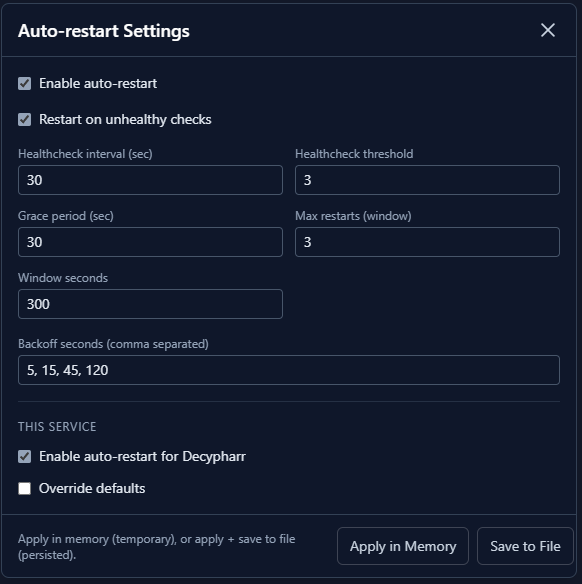
Service overrides#
Service pages can also override auto-restart settings per service:
- Enable/disable auto-restart for the current service
- Override defaults (intervals, thresholds, backoff)
- Apply in memory or save to file
The backend pauses Auto-restart during stack startup. A restart attempt is shown as successful only after the service passes its health checks; slow services can use a longer per-service grace override.
Service-page health badges distinguish Healthy, Degraded, Starting, and Unhealthy. Hover the badge for the backend's application-probe reason and component summary. Degraded and starting states remain visible but do not increment the Auto-restart unhealthy threshold.
Auto-update settings#
The updates panel lets you check for updates on demand and configure automatic update checks.
DUMB also shows global update notices in the frontend when a DUMB API or DUMB Frontend update is available, blocked, or was recently applied. The notice opens a review dialog with the affected component, current and available versions, the update message, and a release-notes link when the component has a known repository URL. For normal published releases, a badge reports how many releases the component is behind when GitHub history contains the installed tag. The first release with this feature also seeds a one-time informational notice with the current version; production versions link to release notes, DUMB dev-image versions such as v2.4.2-dev.5 link to the rolling dev-build reference, and branch builds with commit markers link to the relevant commit.
The backend retains API/frontend terminal update state plus applied and informational notices under /config/update_notices.json, so a backend restart or a different browser does not lose the authoritative result. The DUMB API always performs a startup check and daily check-only monitoring; this never installs or replaces the API container automatically. Dismiss only hides a notice in the current browser and does not delete the backend record.
The panel includes a contextual Why this matters callout linking to this section.
Manual update actions:
- Check for updates runs a one-time update check even if auto-update is disabled.
- Install update applies the latest available update when allowed.
- Install configured release, Install configured branch, or Install
configured commit is derived from the saved service configuration when the
backend advertises
configured_source_install; it does not depend on a prior successful update check. Fixed releases and commits hide the action when the installed version already matches. Branch selections remain directly installable because the selected branch can move. The action installs the displayed configured target and keeps the selection active. - Override + latest appears when a service is pinned and temporarily ignores any saved release, branch, commit, or pinned-version selection to install the latest stable release. The saved configuration is restored afterward.
Hover either configured-target action or Override + latest for a concise summary before choosing an installation path.
Checks and installs use app-scoped progress state. Closing the Updates panel while either operation is active asks for confirmation but does not cancel the request. The service page shows a Service update running in the background banner, and reopening the panel—or navigating to another service page and then returning—reattaches to the same progress and final result. This matches the dashboard Updates panel behavior for normal in-app navigation.
When the service being updated is DUMB Frontend, the current frontend stays online while DUMB builds and verifies the replacement. During the final atomic swap, the active request may briefly disconnect because it passes through that same frontend. The page automatically polls the DUMB API's retained update status after the proxy returns and reloads when the replacement is confirmed. If confirmation cannot be reached within the reconnect window, the panel asks you to refresh and review the stored status instead of claiming that the install failed.
Automatic update settings:
| Setting | Description |
|---|---|
| Scheduled update checks | Enable the per-service schedule |
| When available | Show on dashboard records the update without installing; Install automatically retains the existing update/restart behavior |
| Start time | Daily schedule anchor in HH:MM (24-hour) |
| Interval | Hours between update checks |
Notes:
- Saving auto-update settings reschedules the updater immediately (no service restart required).
- Next check is shown in the panel once auto-update is enabled and scheduled.
- Check-only results feed the dashboard Updates count, per-service shortcut, and bulk Updates panel.
- When the backend advertises
update_timing_metrics, a completed manual or scheduled install shows Install duration and readiness-based Downtime in this per-service Updates panel as well as the dashboard bulk Updates panel. The manual-install result remains visible after its automatic post-install version recheck. - Older backends without the
auto_update_modecapability retain automatic installation and do not show the action selector.
Seerr Sync panel#
On Seerr service pages, the Seerr Sync panel lets you:
- Configure the top-level
seerr_syncsettings (enable, polling, external primary/subordinates) - Toggle sync behavior options (pending/approved/declined/deletes/4K)
- Select the per-instance
sync_role(disabled/primary/subordinate) - Test external primary/subordinate connections before saving
- View sync status and failed requests
- Review a contextual Why this matters callout linking to this section
API keys are hidden by default and can be revealed when needed.
Failed request lists are shown in a scrollable panel so large queues don’t expand the page.
Configuration editors#
The frontend includes editors for the main DUMB config and service-specific configs.
Edit DUMB Config#
View or edit dumb_config.json. Changes can be saved in memory or written to disk.
Notes:
- The editor runs schema validation when available.
- Invalid JSON or validation errors block saves until corrected.
- Validation errors include inline "Why invalid" guidance (for example missing required fields, wrong types, unknown keys).
- A live config diff preview shows added/changed/removed paths before apply/save.
- Risk-tagged config changes (for example command/env/path/network/restart/update/credential fields) require an explicit acknowledgement checkbox before apply/save.
On the DUMB API service page, backends advertising runtime_api_log_level also
show a DUMB API Logging panel above the editor. Enable DEBUG Logging
changes the running DUMB and Uvicorn loggers immediately without restarting the
container. Disable DEBUG Logging restores the configured levels. The panel
shows the effective and configured levels, and marks the override as temporary:
it is cleared when the container restarts. Managed-service log-level settings
are not changed.
If DEBUG is already enabled in persistent configuration, the quick action shows DEBUG configured instead of creating a temporary override. Change the saved configuration when persistent DEBUG logging should be disabled. DEBUG can increase log volume substantially and expose additional operational details; existing DUMB secret redaction remains active.
Edit Service Config#
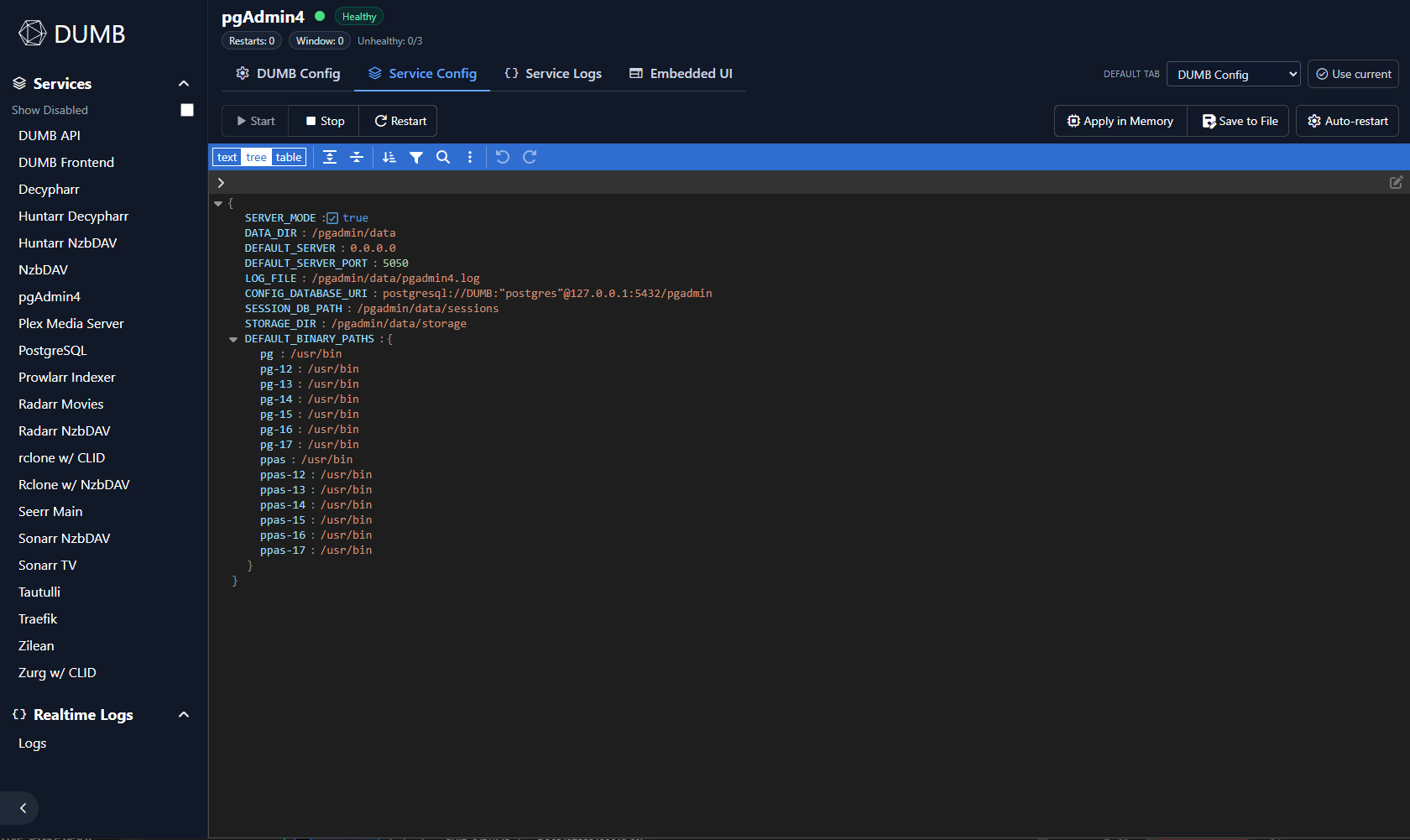
For services with separate config files, you can open and modify those settings here. Service configs should be saved to file.
AI Assist#
When the backend exposes ai_diagnostics, service pages include an AI Assist tab.
The primary workflow is:
- Choose a health, performance, recent-change, or error-recovery preset.
- Select the current time window and comparison period.
- Use Preview bundle to inspect the redacted evidence without contacting a provider.
- Use Analyze when provider calls are enabled.
- Review source coverage and confidence, then ask follow-up questions from the same evidence session.
Provider and evidence settings are collapsed by default so routine diagnostics stay focused on the question and measured result. Reports render sanitized Markdown with working tables and include copy/download controls. The raw redacted bundle remains available in an expandable section.
Provider settings support named saved profiles. Selecting a profile activates it in the backend for both this service page and Stack AI Assist and always repopulates its stored details. Editing those details changes the selector to Unsaved provider until the profile is updated; changing the provider type starts a new unsaved provider instead of silently rewriting the prior profile. Provider keys remain stored server-side and are represented in the UI only by a configured-key indicator. Native Gemini, OpenAI, and Anthropic profiles show a managed endpoint instead of an editable Base URL; gateway profiles continue to expose their URL.
Model discovery retains provider-returned entries but labels known retirements, scheduled shutdown dates, and models incompatible with DUMB's text-diagnostics request. The metadata follows the official Google, OpenAI, and Anthropic lifecycle tables. Retired or incompatible models cannot be tested or used for analysis. Native OpenAI text/Codex models use the Responses API, while embeddings, moderation, media, realtime, and specialized tool-only entries are marked unsupported.
Deep log scans are performed by the backend against retained files and are not limited by the frontend log table's displayed row count. The configured MiB budget bounds each scan.
See AI Assistant for evidence sources, provider configuration, privacy, and safety boundaries.
Logs#
Service pages include log viewers when a log file is configured or when the service is allowlisted for logs:
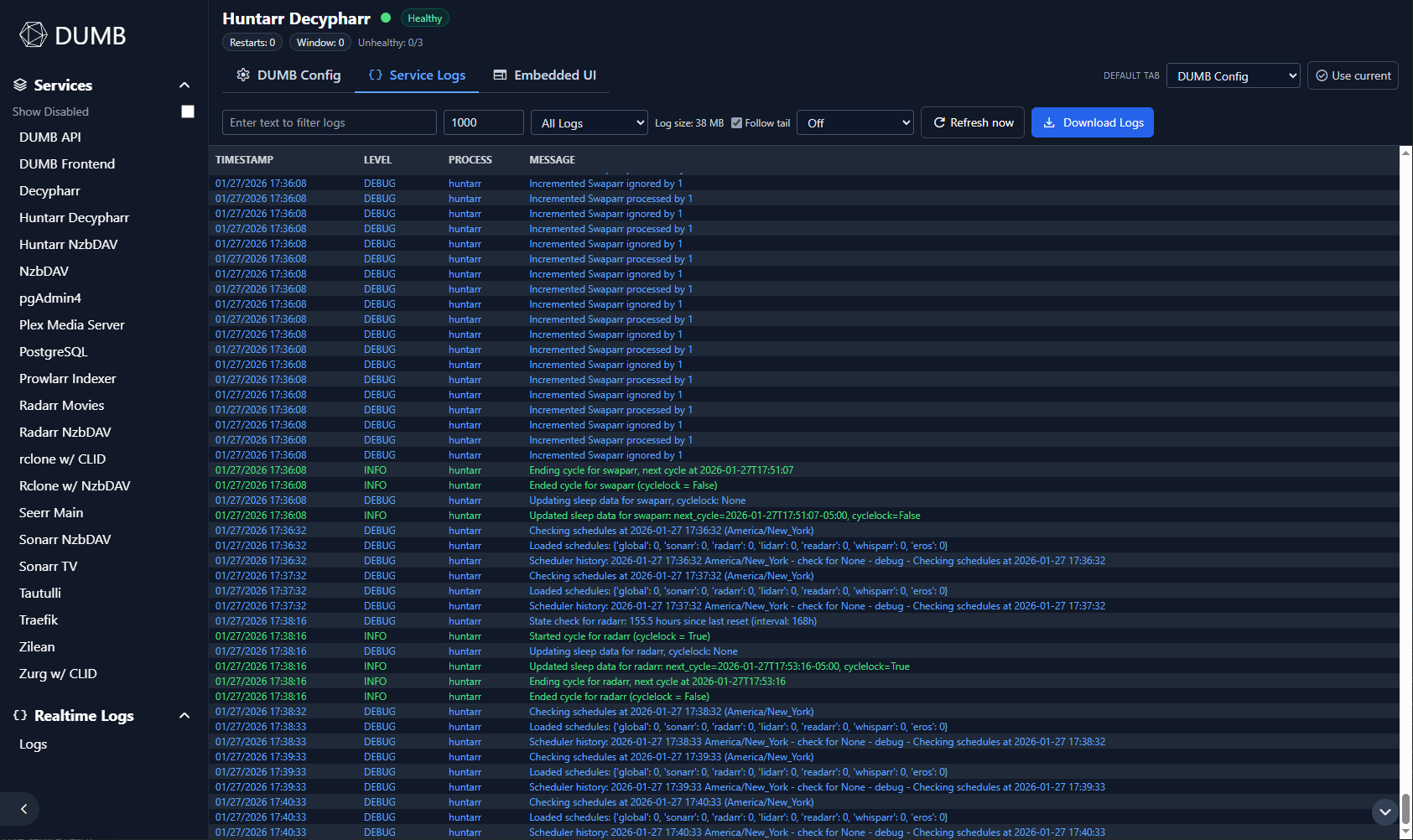
- Filter by text and level
- Limit displayed lines
- Follow tail and refresh on an interval (including custom intervals)
- Manual refresh
- Download logs
Logs viewed or downloaded here pass through DUMB's sensitive-data redactor. It removes credential-bearing headers and cookies, common URL/config secrets, email addresses, and Plex account/server identifiers. Prefer this download path over sharing an application's native log file directly from disk.
Service-aware parsing promotes inner application metadata when a service wraps its own log format. Bazarr rows use Bazarr's real timestamp and severity, preserve useful logger names such as waitress, and group SQL/parameters/traceback continuation lines into the originating error instead of showing each physical line as a current-time INFO row.
Special log tabs#
- Traefik Access Logs appear on the Traefik service page.
- DBRepair Logs appear on the Plex service page when DBRepair is enabled.
Embedded UI#
When embedded UIs are enabled and the service exposes a UI, a dedicated Embedded UI tab appears.
Features:
- Open Public URL when an enabled TPA route matches the service
- Open in new tab for a local/private direct address when no public route is available
- Full window toggle
- UI path selector for services with multiple entry points (for example Zilean)
InfiniDysk uses a trailing slash in its embedded UI path to match its frontend routing.
You can open different service pages in separate browser tabs. Embedded requests carry their service identity, so opening another service or returning to the dashboard does not switch the destination of an already-open embedded UI. After updating the frontend, reload existing service tabs to load the updated embedded routing support.
This separates request routing; it does not give each embedded application a separate browser cookie or storage container. If applications use conflicting login cookies, use separate browser profiles for independent login sessions.
DUMB discovers public routes through its authenticated loopback integration with TPA. A route must be enabled and match the managed service's target port; non-loopback targets must also match the service name. dmbdb never guesses a domain and never receives TPA's integration token. Services without a confirmed TPA match retain their existing local/direct behavior.
Authelia is a security-specific exception. Its service tab launches the configured public HTTPS portal instead of framing the login page because Authelia deliberately sends anti-clickjacking headers that prohibit iframe embedding. TPA's embedded UI remains usable with a local break-glass account; start Authelia-backed TPA SSO from Open TPA for SSO so both authorization and callback run on their registered public HTTPS origins.
Service workers and browser notifications#
Apps such as Seerr and Jellyfin can register service workers for browser notifications and background features. Embedded registrations use the app's own service path, so opening another service tab does not change which worker is downloaded or let it take control of the dashboard. Worker requests and notification destinations retain the same service context.
After updating the frontend, reload service tabs. An obsolete origin-root
/sw.js registration from older embedded routing is retired when the browser
next updates that worker. The retirement keeps application caches, cookies,
local storage, and unrelated worker registrations. If the app asks you to
re-enable push notifications after its registration changes, use that app's
notification settings. Browser notification permission belongs to the DUMB
frontend origin when using the embedded UI.
Worker scopes separate controlled pages; embedded apps still share browser storage on the frontend origin. Direct access on a dedicated app origin keeps that app's native worker behavior.
Jellyfin and Emby libraries#
Sign in to Jellyfin or Emby inside Embedded UI with an account that can access the expected libraries. DUMB's dashboard login is separate from the media server login. A direct server address and the DUMB frontend also use different browser origins, so signing in directly may not sign in the iframe.
If the same account shows libraries at the direct address but the embedded view is empty, update the DUMB frontend and reload the service tab. Older frontend builds could send library and authentication requests to the web client's asset path. The corrected proxy preserves their native routes and opens the media web client at its proper entry point.
Default tab selection#
You can choose a default tab for each service page (for example, always open logs). Open Tools → Preferences to choose a default tab or make the currently open tab the default. The selection is stored in the UI preferences. On narrow screens, swipe the tab bar horizontally to reach additional tabs; edge chevrons indicate when more tabs are available, and the selected tab scrolls into view.
Sidebar operator QoL#
The services sidebar includes faster navigation controls for large stacks:
- Quick filters for
All,Running,Stopped, andUnhealthyservices - Search filter for process name/config key matching
- Saved views to store and re-apply filter/search/toggle combinations
- Compact mode to reduce service-row density in the sidebar
- Auto-hide on navigation to close the sidebar after opening DUMB, Stack AI Assist, RTL, or a service; enabled by default and safe to disable for a permanently open desktop sidebar
- Command palette (
Ctrl/Cmd + K) to jump directly to service pages - Assignable service shortcuts configured from command-palette results by entering shortcut-capture mode and pressing the combo
- Collapsible Sidebar tools section to keep controls hidden when not needed
These controls are persisted in dumb_config.json under dumb.ui.sidebar (with local state used as a fallback during initial load) and are intended for power-user workflows across many services.
The same sidebar preference block also includes persisted dashboard tile ordering at:
dumb.ui.sidebar.service_order
Tile order is written from dashboard drag-and-drop actions and then consumed by both the dashboard and the sidebar service list.