pgAdmin FAQ#
Below are common questions and helpful usage tips for working with pgAdmin in DUMB.
Frequently Asked Questions (FAQ)#
What is pgAdmin used for in DUMB?#
pgAdmin is a web-based GUI for managing PostgreSQL. In the context of DUMB, it connects to the PostgreSQL instance used by services like Riven and Zilean.
You can use it to:
- Explore and modify database tables and data
- Run SQL queries manually using the Query Tool
- Schedule tasks using pgAgent (optional tool inside pgAdmin)
- View the System Stats inside PostgreSQL
Using pgAdmin’s Query Tool#
To run manual queries (e.g., inspecting or modifying blacklist entries):
- Navigate to the "Databases" list in the left sidebar.
- Right-click the
rivenorzileandatabase. - Select Query Tool.
- Paste your SQL query in the top panel and run it.
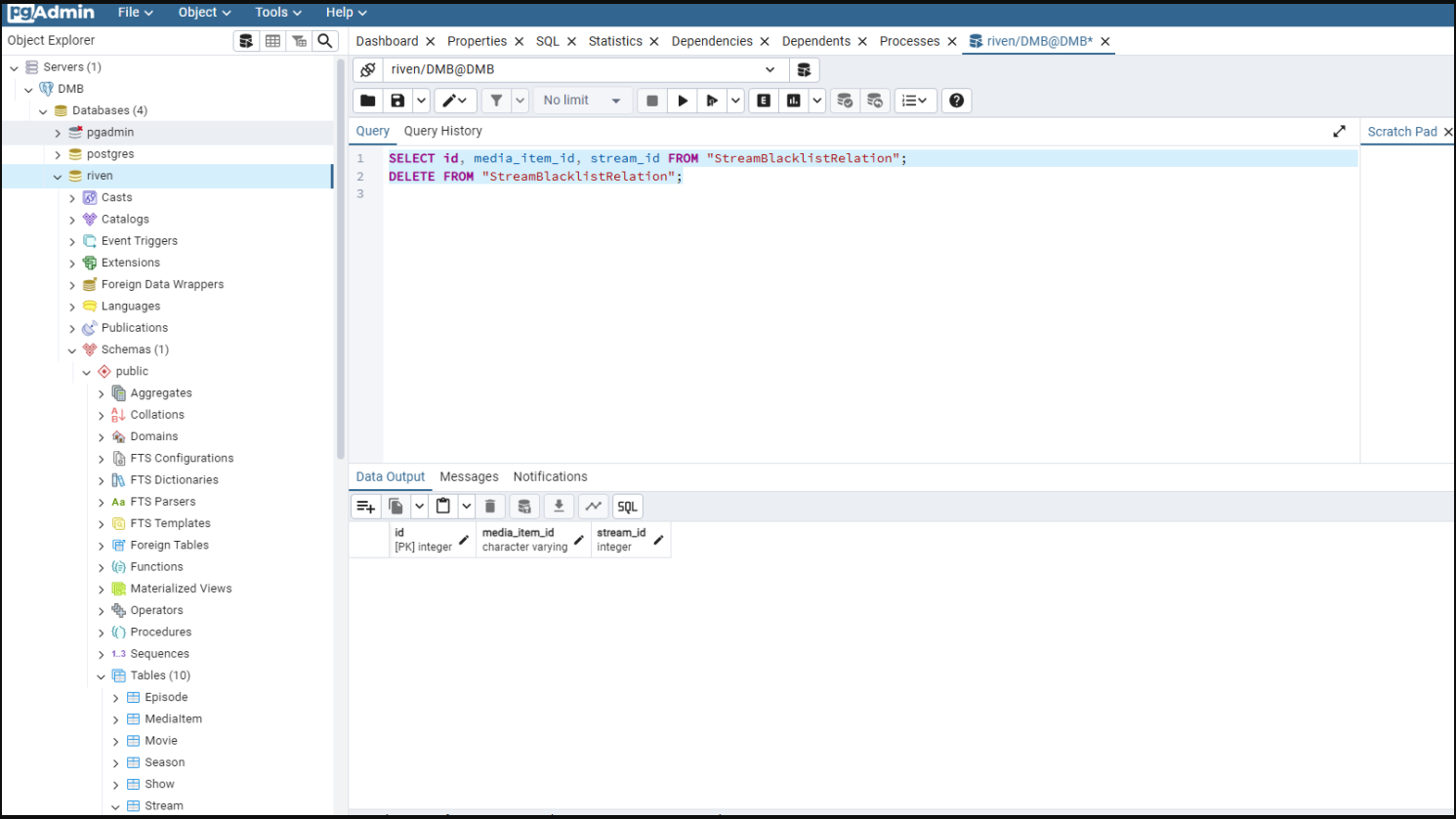
Example: View & Clear Riven's Stream Blacklist#
SELECT id, media_item_id, stream_id FROM "StreamBlacklistRelation";
DELETE FROM "StreamBlacklistRelation";
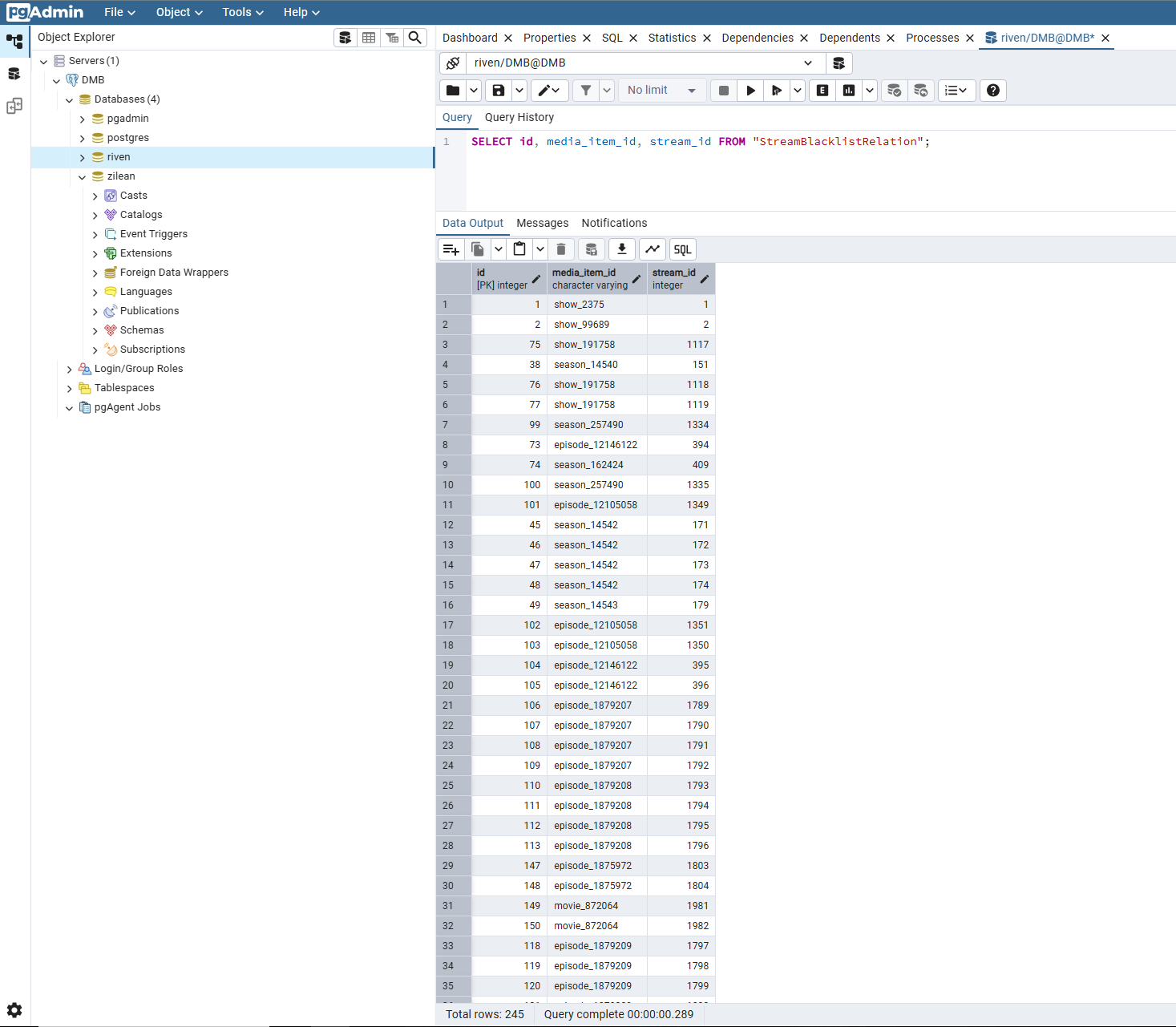
To just view the count:
SELECT COUNT(*) FROM "StreamBlacklistRelation";
Save Queries for Later#
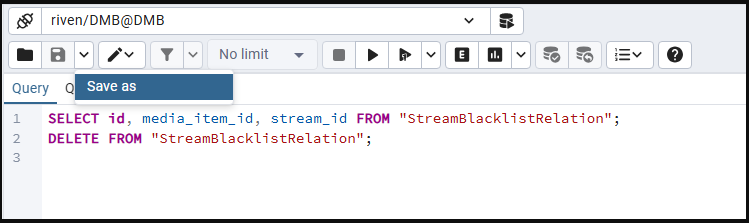
Click Save As in the Query Tool to store frequently used queries as .sql files.
Drop a Database or Create a Manual Backup in pgAdmin#
Drop a Database#
You can delete a database from within pgAdmin if you no longer need it (e.g., to reset Riven or Zilean).
- In the Object Browser, expand the Databases section.
- Right-click the target database (e.g.,
rivenorzilean). - Select Delete/Drop.
- Confirm when prompted.
Warning
This will permanently remove the database and all its data.
Ensure you’ve backed up anything you want to keep before proceeding.
Manually Create a Database Backup#
To create a backup of any database using the pgAdmin interface:
- In the Object Browser, right-click the desired database.
- Choose Backup.
-
In the dialog:
- Format: Select
Customto enable full database restore capability. - Filename: Save to
/pgadmin/data/your_backup_name.backupor.sql.
- Format: Select
-
Ensure Dump Options #1 is configured with:
Include CREATE DATABASE statementenabled (for standalone restoration)Only dataandOnly schemaunchecked (you want both schema and data)
-
Under Dump Options #2, verify or set advanced filters if needed.
-
Click Backup to start the process.
.backup vs .sql#
-
.backup(Custom Format)- Recommended for complete backups
- Supports compression, selective restore, and full restore via pgAdmin or
pg_restore - Not human-readable but ideal for production-grade backups
-
.sql(Plain Format)- Outputs all SQL commands as text
- Human-readable and easy to inspect or modify manually
- Can be restored via
psql, but lacks compression and selective restoration features
For a reliable, restorable snapshot of your database, always choose .backup with Custom format.
For more advanced backup configuration and explanation of options, see the pgAdmin Backup Dialog Documentation.
Example: Scheduled Backups with pgAgent#
DUMB includes the pgAgent package, creates its PostgreSQL extension, and starts the agent when pgAdmin is enabled. The example below creates daily, compressed custom-format dumps for every connectable non-template database, backs up global roles, and removes files older than 14 days.
Where the backups are stored
This example writes to /pgadmin/data/backups inside DUMB. In the maintained
volume layout that is persisted under /data/pgadmin/backups.
A backup stored beside the same container data is not an off-system backup.
Include the host-side data/pgadmin/backups directory in separate storage,
snapshot, or replication so one disk or filesystem failure cannot destroy
both PostgreSQL and its dumps.
- Enable and start both PostgreSQL and pgAdmin in DUMB.
- Log in to pgAdmin, connect to the preconfigured DUMB server, and expand
pgAgent Jobs. If the node does not appear, refresh the server tree and check the PostgreSQL, pgAdmin, and pgAgent service logs before continuing. -
Right-click
pgAgent Jobsand select Create → pgAgent Job.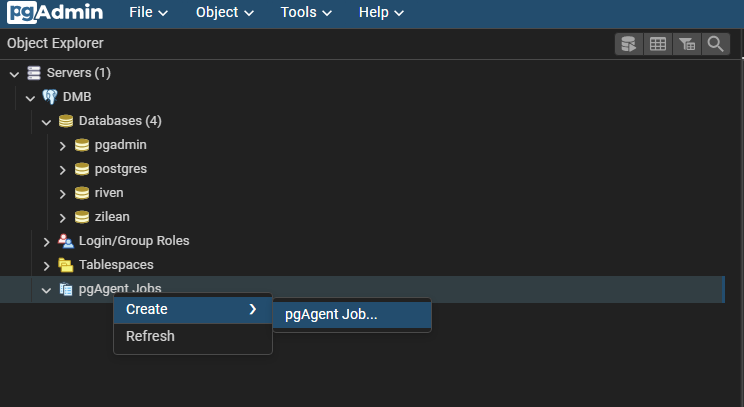
-
Name the job
DUMB PostgreSQL backups, enable it, and leave Host Agent blank unless this database is managed by more than one pgAgent host.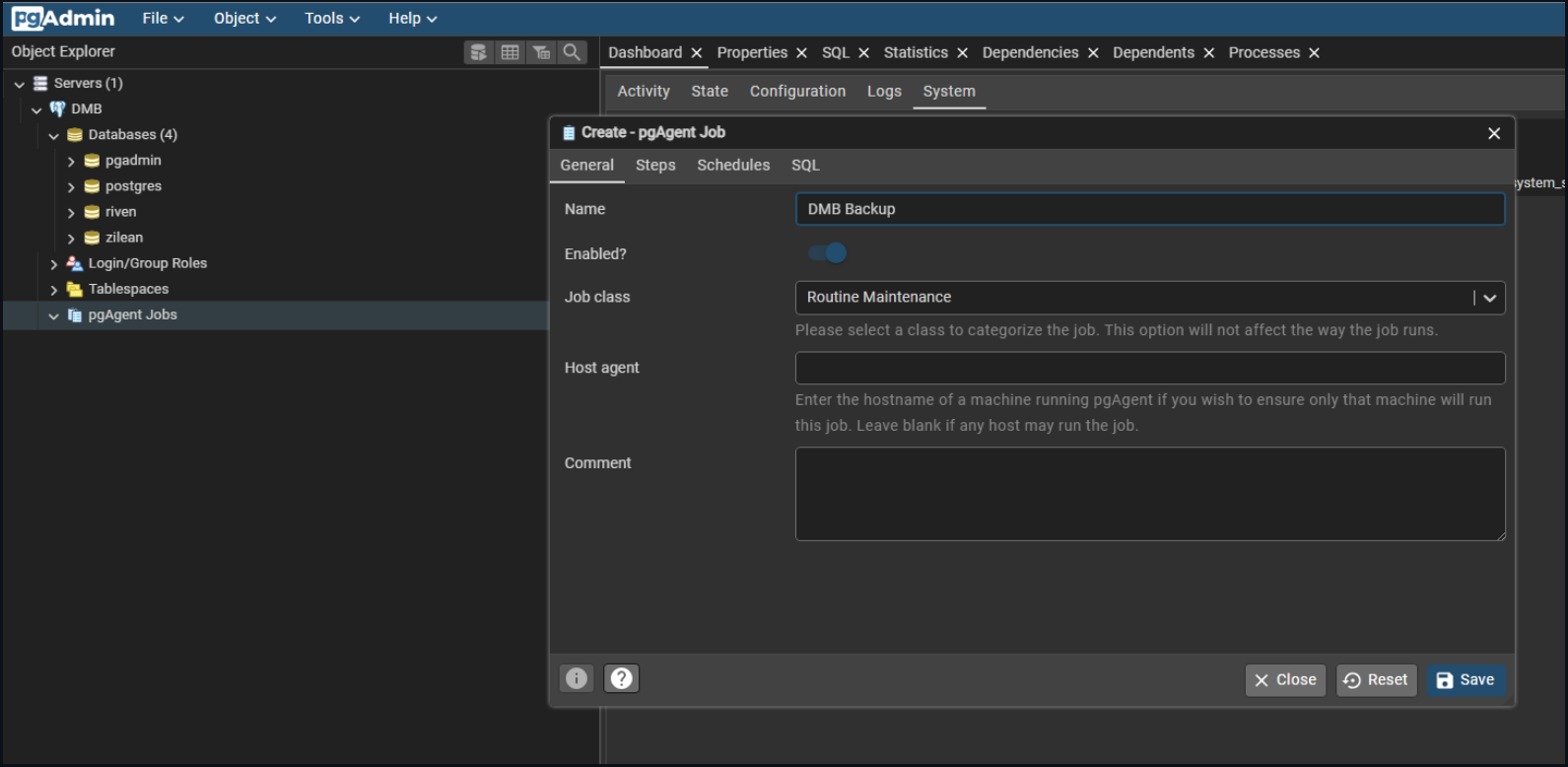
-
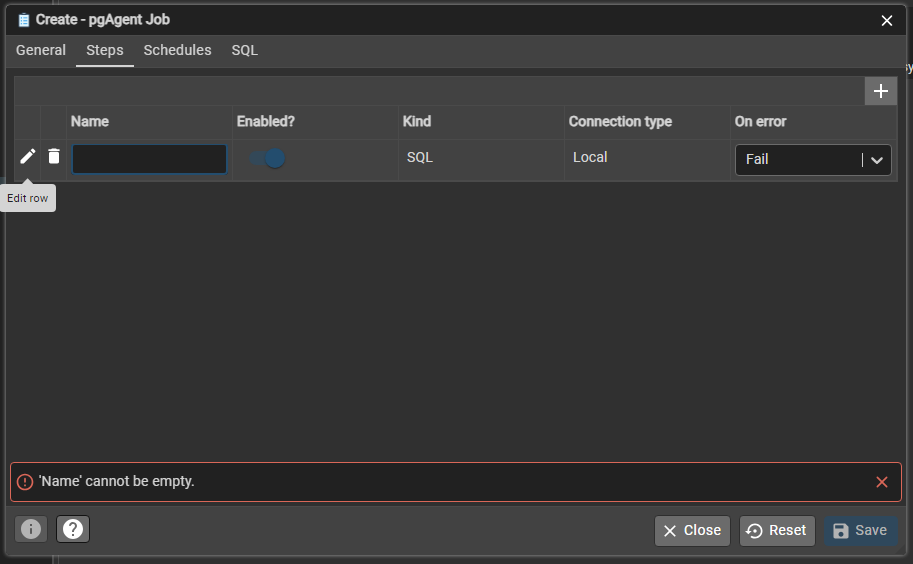
Open Steps, add a step, and use these values:
- Name:
01-backup-all-databases - Kind:
Batch - Enabled: Yes
- On error: Fail
- Name:
-
Paste this shell script into the step's Code tab. Change
retention_daysif required:#!/bin/sh set -eu backup_dir=/pgadmin/data/backups retention_days=14 timestamp=$(date -u +%Y%m%dT%H%M%SZ) socket_dir=/run/postgresql mkdir -p "$backup_dir" # Preserve cluster-level roles in addition to the per-database archives. pg_dumpall \ --host="$socket_dir" \ --username=DUMB \ --no-password \ --globals-only \ --file="$backup_dir/globals-$timestamp.sql" psql \ --host="$socket_dir" \ --username=DUMB \ --dbname=postgres \ --no-password \ --tuples-only \ --no-align \ --command="SELECT datname FROM pg_database WHERE datallowconn AND NOT datistemplate ORDER BY datname" | while IFS= read -r database; do safe_name=$(printf '%s' "$database" | tr -c 'A-Za-z0-9_.-' '_') pg_dump \ --host="$socket_dir" \ --username=DUMB \ --no-password \ --format=custom \ --file="$backup_dir/$safe_name-$timestamp.backup" \ "$database" done find "$backup_dir" -type f \ \( -name '*.backup' -o -name 'globals-*.sql' \) \ -mtime "+$retention_days" -delete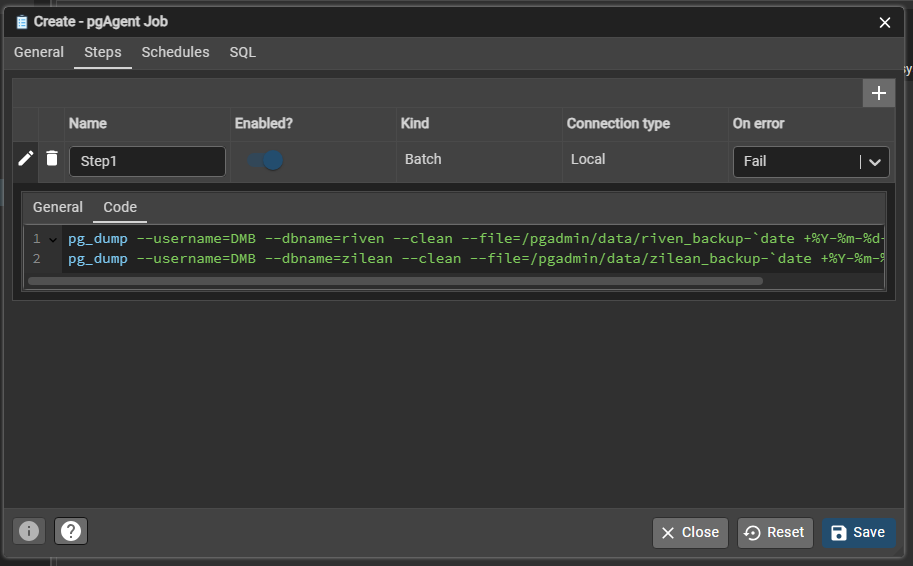
DUMB's default local-socket authentication allows its
DUMBdatabase role to run these commands without embedding a password in the job. If you have customizedpg_hba.confto require a password for local connections, use a root-owned/libpq.pgpassfile with mode0600; do not paste the PostgreSQL password into the pgAgent job. -
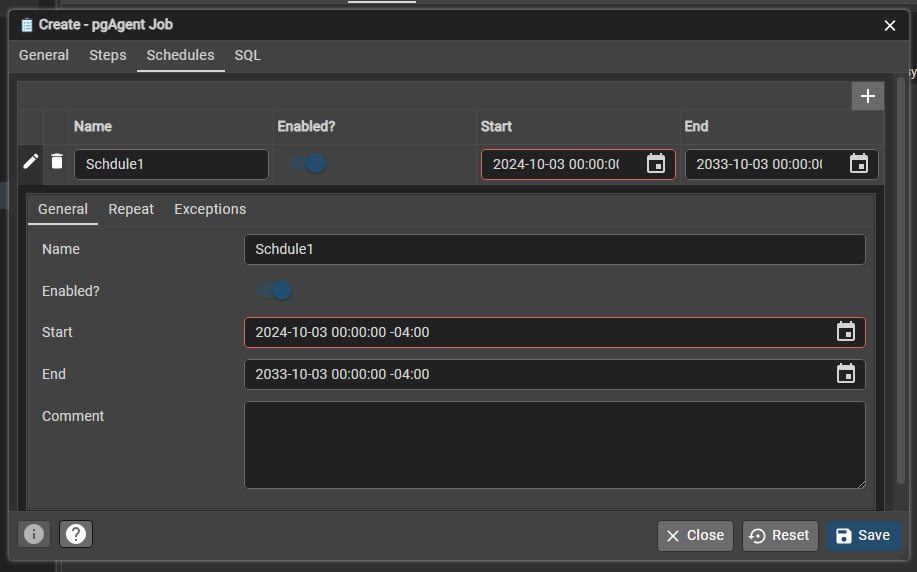
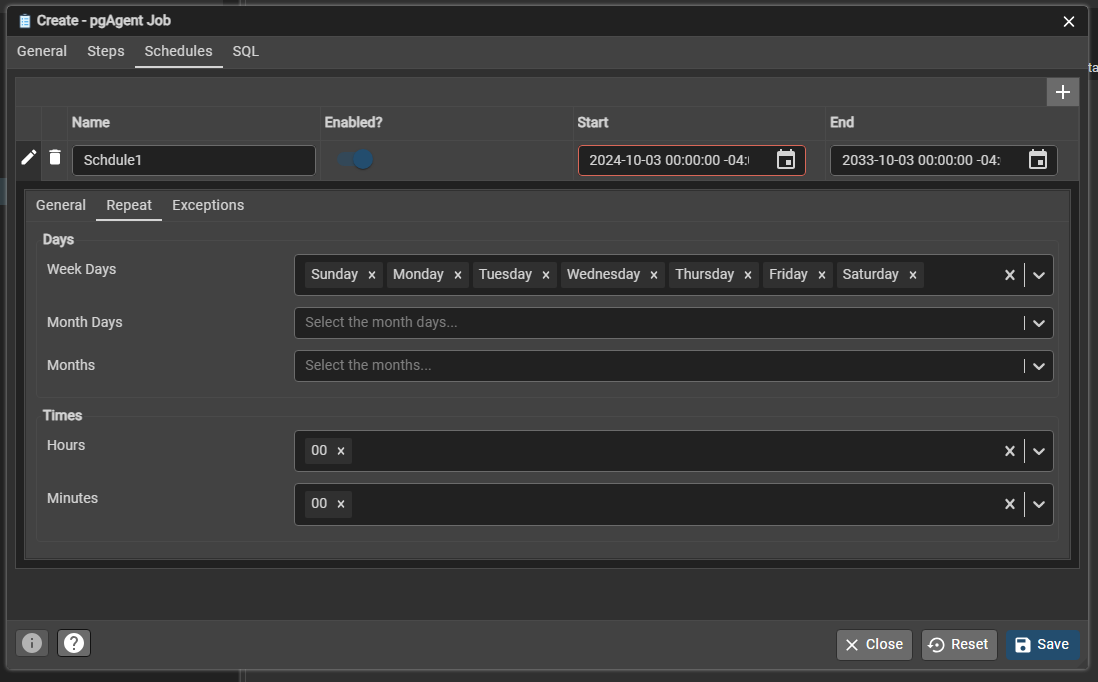
Open Schedules, add a schedule, enable it, and choose a start time when database activity is normally low.
-
On Repeat, select every day and the desired hour/minute. pgAgent schedule values use the DUMB container's timezone.
-
Save the job, right-click it, and select Run now. Confirm that the run is successful and that
.backupfiles plus aglobals-*.sqlfile appeared in/pgadmin/data/backups.
Test a restore#
A successful job only proves that files were written. Periodically restore one of the application archives into a disposable database:
- In pgAdmin, right-click Databases, select Create → Database, and create
a clearly temporary database such as
restore_test. - Right-click that database and select Restore.
- Select the matching
.backupfile from/pgadmin/data/backups, choose Custom or tar, and enable Exit on error. - Run the restore and inspect representative tables or application records.
- Drop only the disposable
restore_testdatabase after validation.
Do not test by restoring over a live application database. The separate
globals-*.sql file contains cluster roles and is restored with psql only when
rebuilding a cluster, before restoring the per-database custom archives.
For the underlying behavior, see the official pgAgent job documentation, pg_dump documentation, and pg_restore documentation.